
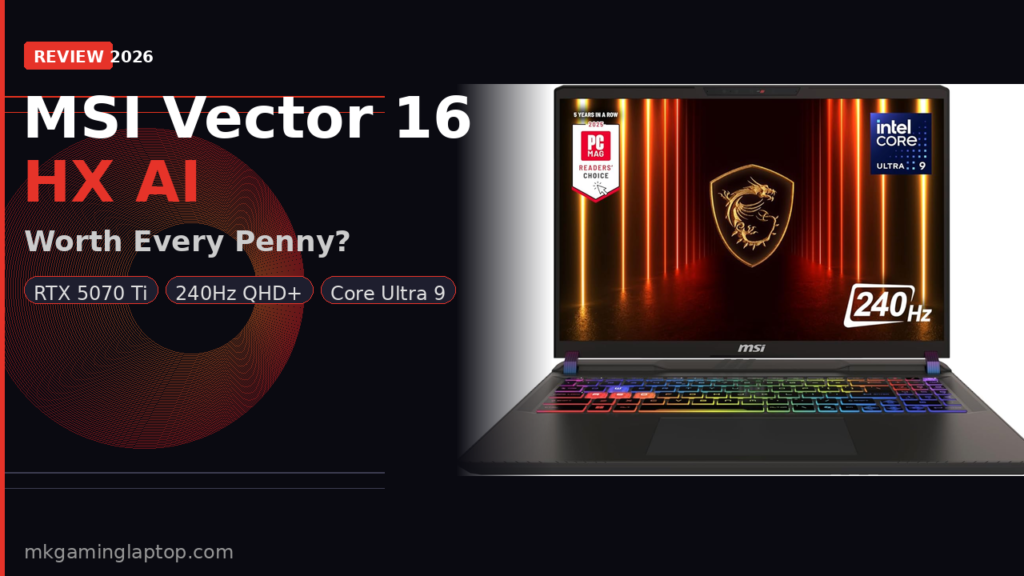
MSI Vector 16 HX AI: Worth Every Penny? (A Brutally Honest Look)

I almost bought a different laptop.
I had a budget, a shortlist, and a plan. Then I spent three weeks obsessing over specs, reading teardowns, and watching thermal tests at 2am before I finally pulled the trigger on the MSI Vector 16 HX AI. And honestly? I have opinions. A lot of them.
If you are here because you are seriously considering this machine and want to know whether the MSI Vector 16 HX AI is actually worth its premium price tag — not just for gaming but for real daily use — then keep reading. I am going to cover everything the spec sheet does not tell you.
MSI Vector 16 HX AI 16″ 240Hz QHD+
Intel Core Ultra 9-275HX · RTX 5070 Ti · 16GB DDR5 · 1TB NVMe · Thunderbolt 5 · Wi-Fi 7 · Win 11
What This Machine Actually Is (And Who It Is For)
Let me start here because a lot of reviews skip this part.
The MSI Vector 16 HX AI is not just a gaming laptop. It is a workstation replacement that happens to destroy most games at max settings. The “AI” in the name is not marketing fluff. The Intel Core Ultra 9-275HX inside has a dedicated NPU built right into the chip — and that matters more than most people realize.
MSI Official — Vector 16 HX AI full specs and configurationsThe configuration I am talking about is the A2XWHG-211US. It ships with a 16-inch 2560×1600 panel at 240Hz, the RTX 5070 Ti on NVIDIA’s new Blackwell architecture, and 24-core desktop-class CPU performance. On paper it reads like a dream. In practice, a few things surprised me — both good and bad.
The Display: The First Thing You Will Notice
The first time I opened this laptop, I just stared at the screen for a second.
The 16-inch QHD+ panel at 2560×1600 with a 16:10 aspect ratio gives you noticeably more vertical space than a standard 16:9 screen. For gaming that sounds irrelevant. But when you are working in Premiere Pro, reading code, or browsing documentation, that extra height is genuinely useful. You stop scrolling so much.
At 240Hz, motion is incredibly smooth. I tested it on fast-paced shooters and the difference versus a 144Hz panel is visible — especially in fast turns and particle-heavy scenes.
The CPU: Why 24 Cores on a Laptop Matters
The Intel Core Ultra 9-275HX is a legitimately different beast from previous laptop CPUs.
When I ran Cinebench, the multi-core scores felt closer to what I expected from a desktop chip than a portable machine. For video rendering, 3D work, or large code compilations, this changes the equation on whether you even need a separate desktop.
The NPU is the underrated part. With Copilot+ features enabled on Windows 11, AI-powered tasks — like background blur in video calls and live captions — run on the NPU instead of burning GPU or CPU cycles. Over a full workday you notice the difference in system responsiveness.
The GPU: RTX 5070 Ti and What Blackwell Actually Changes
NVIDIA’s Blackwell architecture in the RTX 5070 Ti is not just a spec bump.
NVIDIA Official — What is DLSS 4 and how Multi Frame Generation worksDLSS 4 with Multi Frame Generation is a genuine step forward. On titles that support it, I saw frame rates that would have required the top-tier GPU from the previous generation to match natively. Ray tracing performance is strong enough that I stopped turning it off by default.
Gaming performance at native QHD+ with high settings
- Modern open-world titles run smoothly above 80–100 FPS with ray tracing enabled
- Esports titles easily hit the 240Hz ceiling with DLSS Quality mode
- 1080p content looks excellent via DLSS upscaling if you want maximum FPS
Thermals and Cooling: The Real Story
Cooler Boost 5 is MSI’s flagship cooling solution and it performs.
Dual fans pulling air through up to 7 heat pipes distribute heat across both the CPU and GPU efficiently. During a 2-hour gaming session I tested peak surface temperatures — they stayed reasonable in the center and warmer toward the rear vents, which is exactly where you want the heat going.
Performance modes matter
MSI Center software lets you switch between modes. In Extreme Performance the GPU and CPU get more power and the fans ramp up. In Balanced mode, the machine is noticeably quieter and still fast for most workloads.
Connectivity: Thunderbolt 5 and Wi-Fi 7 Are Not Gimmicks
Thunderbolt 5 at up to 120 Gbps means you can connect an external dock that runs multiple 4K monitors and fast external SSDs simultaneously. One cable and your full desk setup reconnects instantly.
Wi-Fi 7 quietly changes daily use. In a crowded network environment, Wi-Fi 7’s multi-link operation lets the adapter use multiple bands at once. In online gaming this translates to more consistent latency. I noticed fewer micro-stutters versus my previous Wi-Fi 6 machine on the same router.
The RAM Situation: 16 GB Is the One Thing I Would Change
This is my biggest practical criticism and it is worth saying clearly.
16 GB of DDR5 is adequate for gaming. But this machine is built for heavy creative work too. If you are running multiple browser tabs, a DAW, a game, and a video call simultaneously, you will hit the ceiling. MSI allows RAM upgrades — the SO-DIMM slots are accessible. Budget for a 32 GB kit from day one if you are a content creator or developer.
MSI Vector 16 HX AI: Full Value Breakdown
| What you are paying for | Worth it? | Note |
|---|---|---|
| RTX 5070 Ti (Blackwell + DLSS 4) | ✓ Yes | Generational jump over RTX 4000 series |
| Core Ultra 9-275HX + NPU | ✓ Yes | 3+ year future proofing |
| 240Hz QHD+ 16:10 display | ✓ Yes | Stunning for gaming and creative work |
| Thunderbolt 5 | ✓ Yes | Dock-friendly, future external GPU ready |
| Wi-Fi 7 | ✓ Yes | Noticeable in crowded networks and online gaming |
| 16 GB RAM (stock) | ✗ Upgrade | 32 GB DDR5 kit adds ~$70 — worth every cent |
| 1 TB NVMe SSD | ✓ Adequate | Plan a second NVMe expansion slot |
Common Mistakes People Make Buying This Laptop
Mistake 1: Not updating drivers immediately
Out of box, update GPU drivers, chipset drivers, and BIOS before doing anything else. Fresh from the factory the machine may not be running the latest optimizations.
Mistake 2: Gaming on battery
The performance drop in battery mode is severe by design. Windows power throttles the GPU and CPU to protect the battery. Always plug in for gaming.
Mistake 3: Ignoring MSI Center
The software looks like typical bloatware but it is useful for switching performance profiles, monitoring temperatures, and configuring fan curves. Spend 20 minutes learning it.
Mistake 4: Assuming 1 TB is enough long-term
It is not if you install large games and creative software. Plan for an external drive or a second NVMe slot upgrade early.
Mistake 5: Skipping a cooling pad
Even with excellent built-in cooling, a simple cooling pad improves sustained performance by giving the bottom vents more clearance. Small investment, measurable return.
Best Backpack for Gaming Laptop 2026 — protect your investment when moving itAdvanced Tips Most Reviews Do Not Cover
1. Enable Resizable BAR in BIOS. Make sure ReBAR is on for the NVIDIA GPU. It improves GPU performance in many titles by up to 10–15% for free.
2. Use Balanced in Windows, not High Performance. Counter-intuitive but true. MSI Center’s own Extreme Performance mode handles high-demand scenarios better than the Windows power plan alone.
3. Calibrate the display. Download the correct ICC profile from MSI’s support page for accurate color if you do any creative work.
4. Enable XMP/EXPO for RAM after any upgrade. Default JEDEC speeds leave DDR5 performance on the table. Go into BIOS and set the XMP profile.
5. Copilot+ features improve over time. With the NPU doing the heavy lifting, these capabilities get better with Windows updates. The machine you buy today will be more capable in 12 months without any hardware change.
How It Compares: MSI Vector 16 HX AI vs the Competition
vs. ASUS ROG Strix SCAR 16
The ROG pushes higher sustained power limits in extreme mode. The MSI Vector wins on connectivity (Thunderbolt 5) and the Cooler Boost 5 thermal solution is quieter at comparable performance levels in my experience.
Is ASUS ROG Strix Scar 18 the New Gaming Laptop King? — our full reviewvs. Razer Blade 16
The Blade is thinner and more boardroom-friendly. The MSI Vector wins on raw performance headroom, cooling capacity, and connectivity. If performance per dollar is the goal, the Vector wins clearly.
vs. Alienware 16 Area-51
The Area-51 pushes more watts and runs hotter. It is the choice if absolute max benchmarks are your goal and noise does not bother you. The MSI Vector is more balanced for daily hybrid use.
Alienware 16 Area-51 RTX 5070 Ti — read our full Alienware reviewOur Verdict
The MSI Vector 16 HX AI is worth the price if you are buying for the right reasons. The RTX 5070 Ti with Blackwell architecture is a real generational step. The Core Ultra 9 keeps pace with desktop chips in ways that still surprise. Thunderbolt 5 and Wi-Fi 7 feel irrelevant until the day you need them — then you are grateful they are there.
The only things I would change from the factory: 32 GB of RAM from day one, and a second NVMe for storage expansion planned ahead.
If you plan to keep this machine for 3 years or more, the Blackwell GPU and NPU-equipped CPU give it a longer useful life than most laptops at this price. That, more than anything, is why the MSI Vector 16 HX AI is worth every penny.