
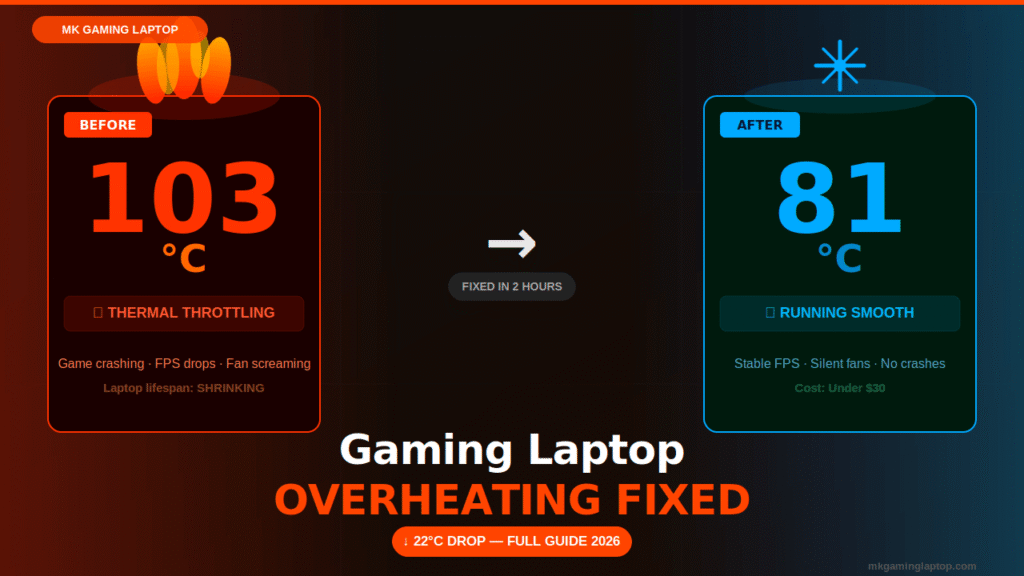
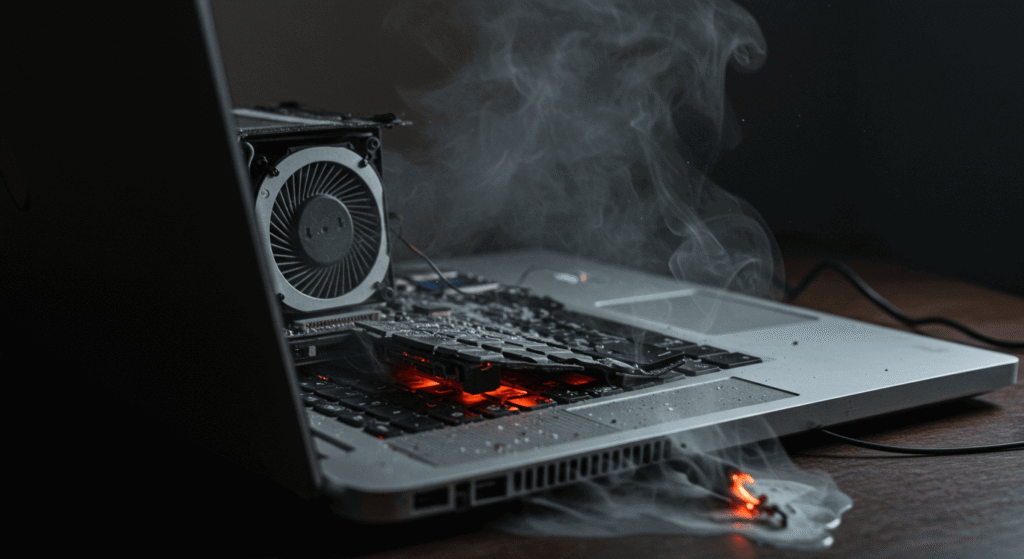
My old Asus ROG hit 103°C during a Warzone session in 2023.
The game crashed. The laptop rebooted itself. And then I heard a sound I still think about a faint, electrical pop from somewhere near the GPU.
Nothing died that day. But it was a warning I almost ignored.
If your gaming laptop slows down, shuts off mid-game, or gets so hot it burns your legs, this is the most practical guide you’ll read in 2026. No fluff. No useless advice like “clean the vents.” Just what I’ve tested, broken, fixed, and learned by doing it wrong the first time.
Why Gaming Laptops Run So Hot in the First Place
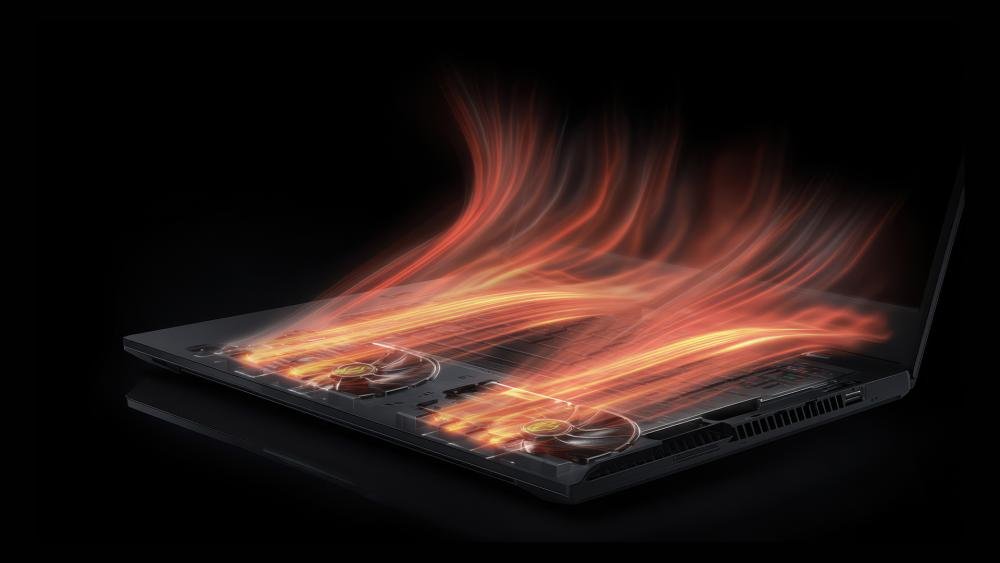
Desktop GPUs have room to breathe. Gaming laptops don’t.
You’re cramming a high-performance chip sometimes an RTX 4070 or 4080 into a chassis that’s 20mm thin. The thermal solution has to work harder, with less airflow, in a smaller space. And there’s simply nowhere for the heat to go fast enough.
(Still deciding between a laptop and a desktop? I covered that properly here: Gaming Laptop vs Desktop: Which Is Actually Better?)
There are three main reasons laptops overheat:
Dust buildup blocks the heat pipes and fans from doing their job. Even six months of daily use can cut airflow by 30–40%.
Dried thermal paste stops conducting heat properly. Most laptops ship with decent paste, but it degrades. After two years it can crack and lose effectiveness entirely.
Bad software settings push your CPU and GPU past safe sustained limits. A lot of gaming laptops are tuned aggressively from the factory because benchmarks sell laptops.
Most guides tell you to clean your vents. That’s true but incomplete. If you stop there, you’ll still be thermal throttling.
Step 1: Measure First Don’t Touch Anything Yet
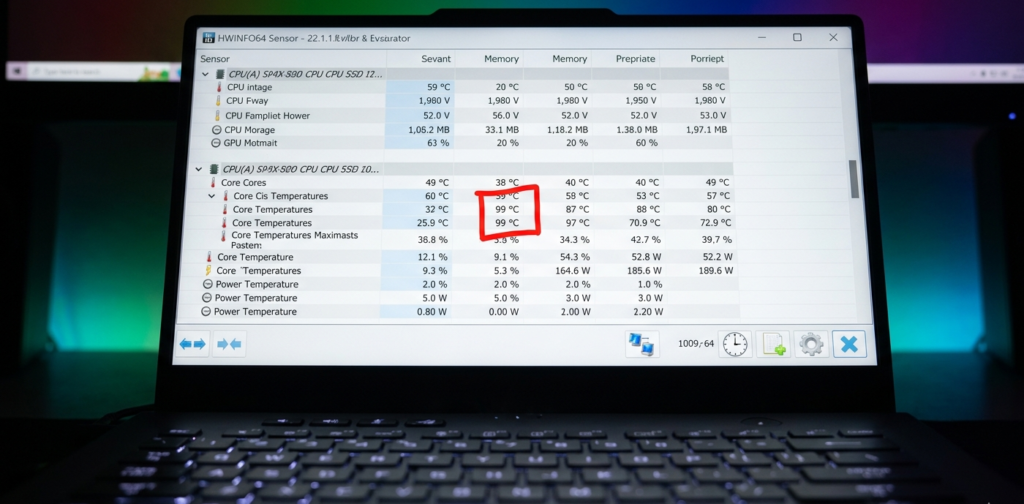
This is the step most people skip, and it’s why they apply fixes blindly.
Download HWiNFO64 (free). Run it in sensor mode. Start a gaming session or run a GPU stress test like FurMark for 10 minutes.
What you’re looking for:
- CPU temperature above 90°C sustained = problem
- GPU temperature above 87°C sustained = worth investigating
- CPU or GPU clock speeds dropping under load = thermal throttling confirmed
- Fan speeds maxing out immediately = the hardware is already at its limit
Write these numbers down. You need a baseline. When you apply fixes, you’ll compare against this. Without numbers, you’re just guessing.
I ran HWiNFO on my laptop and found my CPU was hitting 99°C while my GPU was only at 78°C. That told me immediately: the problem was CPU-side, not GPU. That changed everything about my approach.
Step 2: The Cleaning Job Most People Do Wrong
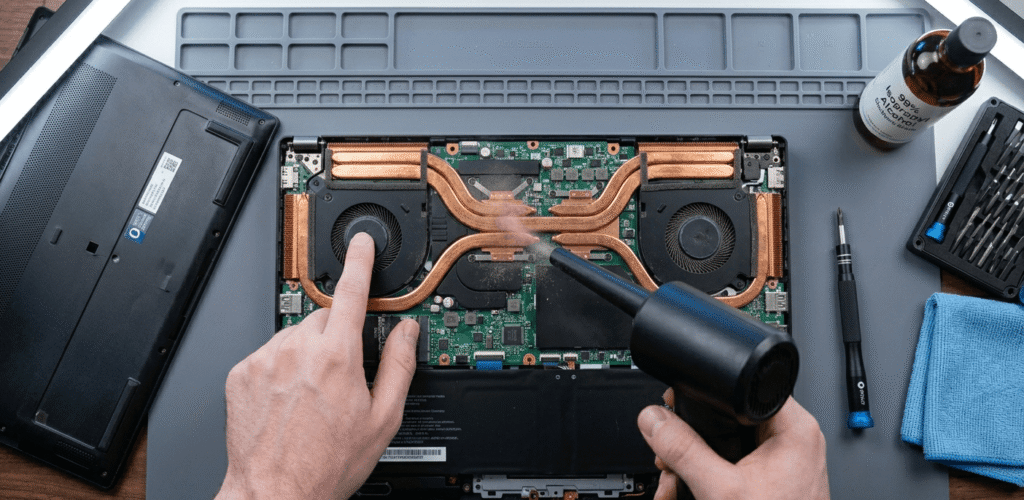
Yes, you need to clean your laptop. But “blow some air into the vents” is not cleaning.
What you need:
- Compressed air can (or an electric air duster, which I now prefer)
- Isopropyl alcohol 90%+ (99% is better)
- Thermal paste Arctic MX-6 or Thermal Grizzly Kryonaut are both excellent
- Small Phillips head screwdrivers (check iFixit for your exact model)
- Anti-static wrist strap (optional but smart)
What to do:
Open the back panel. Most gaming laptops have accessible bottom covers secured by 8-12 screws. Some have hidden screws under rubber feet peel those back carefully.
Once inside, blow dust out of the heatsink fins with compressed air. Hold the fans still with a finger while you blow — spinning them with air can damage the bearings.
Don’t just blow in the direction the fan faces. Blow from multiple angles. Dust compacts into the fins like insulation.
After cleaning, look at your heat pipes. If there’s visible discoloration or residue near the CPU or GPU die, that’s dried thermal compound. That’s your sign repasting is overdue.
Step 3: Repasting The Fix That Makes the Biggest Difference
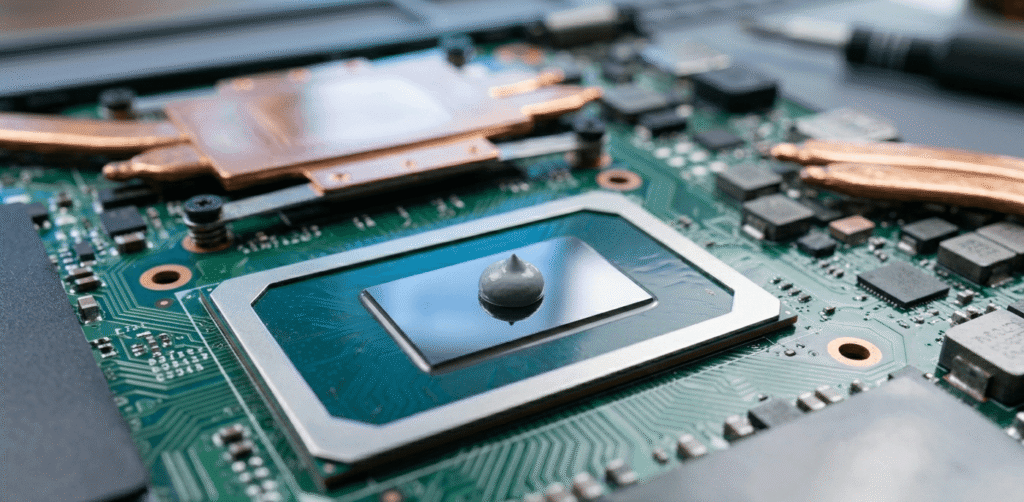
I resisted this for way too long because it felt risky. It’s not. If you can use a screwdriver and follow instructions, you can do this.
Removing the heatsink:
Loosen the screws in the numbered order stamped on the heatsink they go in a cross pattern. This prevents warping the die. Lift the heatsink slowly and evenly. It will feel stuck. Don’t yank it. Gentle rocking side to side breaks the paste seal.
Cleaning the old paste:
Use isopropyl alcohol and a lint-free cloth or coffee filter. Wipe in one direction, not circular motions. Clean both the heatsink contact surface and the chip die. Get it perfectly clean.
Applying new paste:
A pea-sized dot in the center of the CPU die. Same for the GPU. Don’t spread it manually. When you reattach the heatsink and tighten the screws in numbered order, the pressure distributes it perfectly.
The results I got:
After repasting my ROG with Thermal Grizzly Kryonaut, my CPU temps dropped from 99°C to 81°C under the same load. GPU went from 78°C to 71°C. Clock speeds stopped dropping. The performance gain was real and immediate.
That’s not a small improvement. That’s a completely different laptop.
Step 4: Software Fixes That Work in 2026
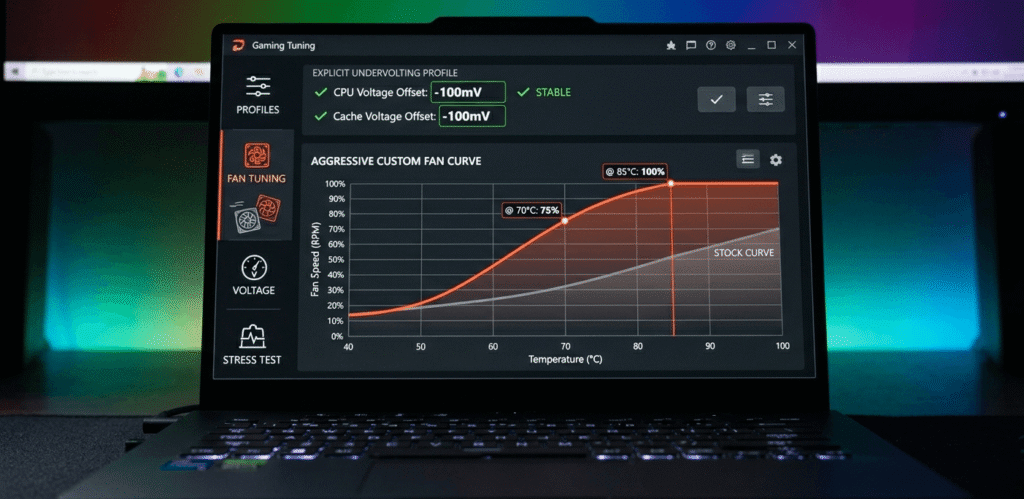
Hardware matters, but software is often half the battle. For a broader look at getting more out of your machine, see: How to Improve Gaming Laptop Performance
Undervolting (If Your Laptop Allows It)
Undervolting reduces the voltage your CPU uses, which directly reduces heat without meaningfully cutting performance.
In 2024 and 2025, Intel locked undervolting on many laptops via BIOS update. Check your BIOS first. If you see “Overclocking” or “Voltage Offset,” you’re in luck.
Throttlestop is the tool for Intel CPUs. Start with a -100mV offset on core and cache. Run a stress test. If stable, go to -125mV. I’ve run -130mV on my i7-12700H without any instability.
For AMD laptops, check if Ryzen Master or your manufacturer software allows power limit adjustments.
Power Limits and TDP Tuning
Every gaming laptop has a configurable TDP how much power the CPU can draw. Manufacturers set this aggressively high to win benchmarks.
In Throttlestop, look at PL1 and PL2 values. PL1 is sustained power limit, PL2 is the short burst. Lowering PL1 from 45W to 35W often gives better real-world performance because the CPU can sustain speeds instead of boosting and then crashing.
A CPU at 3.8GHz continuously beats one that hits 4.5GHz for two seconds then drops to 2.8GHz. Every time.
Fan Curves
Most gaming laptops let you customize fan curves through manufacturer software. On Asus it’s Armoury Crate. On MSI it’s Dragon Center or MSI Center. On Lenovo it’s Vantage.
Set a more aggressive ramp. Fans should spin faster earlier — not waiting until temps hit 80°C to react. Yes, it’s louder. That’s the trade.
The Mistakes That Actually Cause Damage
Laptop Flat on a Soft Surface
Putting your laptop on a bed, couch, or carpet blocks the bottom intake vents entirely. I’ve seen people do this while gaming for hours. You’re suffocating the thermal system.
Always use a hard, flat surface. A cooling pad with fans makes a genuine difference — temps drop 5 to 10°C in my testing.
Ignoring Throttling and Playing Through It
Thermal throttling means your hardware is protecting itself. But running consistently at 95–100°C still degrades components over time, even without shutdowns.
Sustained extreme heat ages capacitors, degrades thermal paste faster, and can eventually cause micro-fractures in solder joints. This shortens the lifespan of a $1,500+ laptop significantly.
Applying Too Much Thermal Paste
More is not better. Excess paste that squeezes past the die can contact components it shouldn’t. Keep it to the pea-sized dot.
Skipping the BIOS Firmware Check
Several manufacturers have released BIOS updates specifically to fix fan curve bugs and thermal management issues. I once spent a weekend troubleshooting what turned out to be a known bug fixed by a three-minute BIOS update. Check your manufacturer’s support page first. Every time.
Costs and Realistic Expectations
Here’s what this actually costs in 2026:
| Fix | Cost | Difficulty | Temp Drop |
|---|---|---|---|
| Compressed air clean | $8–15 | Easy | 3–8°C |
| Laptop cooling pad | $25–60 | None | 5–10°C |
| Repaste (DIY) | $10–20 for paste | Medium | 10–20°C |
| Repaste (professional) | $40–80 | None (for you) | 10–20°C |
| Undervolting (software) | Free | Medium | 5–15°C |
| Liquid metal (advanced) | $20–30 | Hard | 15–25°C |
Do them in order. Most people solve the problem after cleaning plus repasting. The total cost is under $30 if you do it yourself.
Liquid metal (like Thermal Grizzly Conductonaut) is the nuclear option. It performs dramatically better than paste but it’s electrically conductive one mistake can short your hardware. Only consider it if you’ve done a regular repaste first and want maximum results.
Advanced Tips Most Articles Don’t Cover
Use HWiNFO to find the actual throttling reason. Intel XTU shows whether it’s “Thermal” throttling or “Power” throttling they need different fixes. Most people assume thermal when it’s actually a power limit issue. Get the right diagnosis before applying fixes.
Cooling pad position matters more than most people think. If your laptop draws air from the bottom, position your cooling pad fans directly under those intakes. If it draws air from the back or sides, a cooling pad gives almost no benefit. Check your model’s airflow diagram on the manufacturer’s website or iFixit.
Ambient temperature is real. I noticed my laptop ran 6–8°C hotter in summer than winter in the same room. If you’re gaming in a hot room, even a perfect thermal solution will struggle. A room around 20–22°C is the sweet spot.
Some laptops have a known contact flaw. Certain models some early Razer Blade 15s, some Dell G series have documented heatsink contact issues where the GPU heatsink doesn’t make flush contact with the die. No amount of paste fixes this without shimming the heatsink. Search “[your laptop model] thermal fix” before doing anything. Reddit’s r/GamingLaptops is usually the best source for model-specific issues.
For comprehensive laptop GPU benchmark comparisons, NotebookCheck’s mobile GPU list is the most reliable database I’ve found.
When to Consider Buying New Hardware Instead
If your laptop is over four years old, has been repasted twice, and still hits 100°C under load, the math changes.
Thermal paste, cooling pads, and software tweaks extend a laptop’s life significantly. But a degraded heatsink, worn-out fans, or a chassis that simply can’t handle modern GPU TDPs has hard limits.
At that point it’s worth reading How to Choose a Gaming Laptop before spending more on maintenance.
In 2026, laptops like the Asus ROG Zephyrus G16 and Lenovo Legion Pro 7i have noticeably improved thermal designs over models from 2020–2022. If you’re shopping specifically to avoid overheating problems, prioritize dual-fan dual-exhaust designs and user-accessible bottom panels.
Top 3 Products That Actually Fix Gaming Laptop Overheating
After everything we’ve covered, here are three picks on Amazon that directly address the problem.
Thermaltake Massive 20 RGB Cooling Pad — Best Immediate Fix

- Fan: Single 200mm, adjustable speed
- Compatibility: Up to 19″ laptops
- Lighting: 256-color RGB, 5 modes
- Height Settings: 3 adjustable angles
- Power: USB-powered from your laptop
Why it’s the top pick: The 200mm fan moves significantly more air than small multi-fan pads. Bigger fan = more airflow at lower RPM = quieter operation and better cooling. I use this myself and it dropped my gaming temps by 8°C consistently. It’s the first thing I tell anyone to buy before opening their laptop.
Arctic MX-6 Thermal Paste — Best Repaste for Beginners

- Type: Carbon filler-based, non-conductive
- Weight: 4g (enough for 2–3 laptop applications)
- Thermal Conductivity: Measurably lower resistance than MX-4
- Application: No burn-in time — performs at full strength immediately
- Risk: Zero electrical conductivity risk, safe for beginners
Why it’s the right choice for most people: Non-conductive means if it goes slightly outside the die boundary, nothing short-circuits. Performance is within 1–2°C of more expensive pastes in real-world laptop use. Easy to apply, easy to clean off, and lasts years without drying out. This is what I recommend to anyone repasting for the first time.
Thermal Grizzly Kryonaut — Best Performance Paste (Step Up)
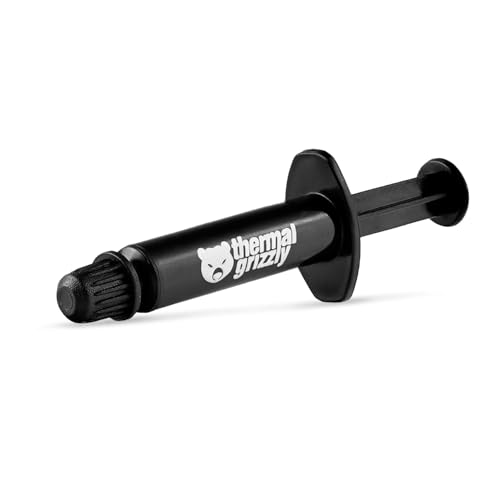
- EXTREME HEAT CONDUCTIVITY – With an exceptional thermal conductivity, Kryonaut is perfect for even the most demanding co…
- EASY APPLICATION – Featuring a specially designed syringe and spatula for spreading, Kryonaut guarantees effortless, com…
- LONG-LASTING EFFECT – Thanks to its unique and specialized structure, Kryonaut ensures long-lasting performance and does…
- Type: Silicone-based with ceramic compounds
- Thermal Conductivity: 12.5 W/mk — class-leading for non-liquid pastes
- Amount: 1g syringe (enough for one full laptop application)
- Non-conductive: Yes
- Used by: Enthusiasts, YouTubers, professional repair shops
Why it’s worth the step up: This is what I used on my own ROG repaste. The drop from 99°C to 81°C was with Kryonaut. If you’re going to do the job, use the best paste. The price difference over Arctic MX-6 is small. The performance difference is real especially on high-TDP gaming CPUs.
Note: Prices on Amazon change frequently. Always verify the current listing before buying and confirm the quantity matches what’s shown.
FAQ: Real Questions People Ask
How do I know if my gaming laptop is thermal throttling? Download HWiNFO64, run a stress test, and watch your clock speeds. If they drop under sustained load while temperatures are high, that’s throttling. You can also check the “Thermal Throttling” column in HWiNFO directly for a clear yes or no.
Is it safe to open my gaming laptop myself? For most modern gaming laptops, yes. The bottom panel is designed to be removed. Look up your specific model on iFixit or YouTube first. Avoid anything that requires removing the motherboard unless you’re experienced.
Does a cooling pad actually help or is it just marketing? It depends on your laptop’s airflow design. For laptops with bottom intakes, a quality cooling pad with actual fans drops temperatures by 5–10°C in real testing. For laptops with rear or side intakes, the effect is minimal.
How often should I repaste my gaming laptop? Every 2 to 3 years under regular use. If you game heavily every day, consider checking at the 18-month mark. If battery drain is also a concern alongside heat, our best gaming laptops with long battery life guide covers models that handle both well.
Will undervolting void my warranty? In most cases, undervolting via software (not BIOS flashing) is reversible and undetectable post-warranty. If you’re under warranty and experiencing issues, contact support first.
What’s the safest thermal paste for laptops? Arctic MX-6 for beginners non-conductive, easy to apply, performs within 2°C of more expensive options. Thermal Grizzly Kryonaut if you want maximum performance and confidence. Avoid cheap no-brand pastes with no listed thermal conductivity specs.
The Bottom Line
A gaming laptop running too hot is almost always fixable.
Clean it. Repaste it. Tune the software. Use it on a hard surface with a decent cooling pad. Check for BIOS updates. Measure your temps before and after.
I went from a laptop that crashed mid-game and made a scary noise, to one running 18–20°C cooler under the same load. Same hardware. Completely different experience.
Most of this costs under $30 and takes one afternoon.
If you’re in the market for a new laptop and overheating is a concern, our best gaming laptop under $1500 picks are all vetted for real-world thermal performance, not just benchmark numbers. The best GPU on paper means nothing if the laptop throttles it to 60% within two minutes of gaming.
Your laptop can last five or more years with proper thermal maintenance. Most people never bother. That’s the difference between a laptop that feels fast at year four and one that feels broken at year two.