
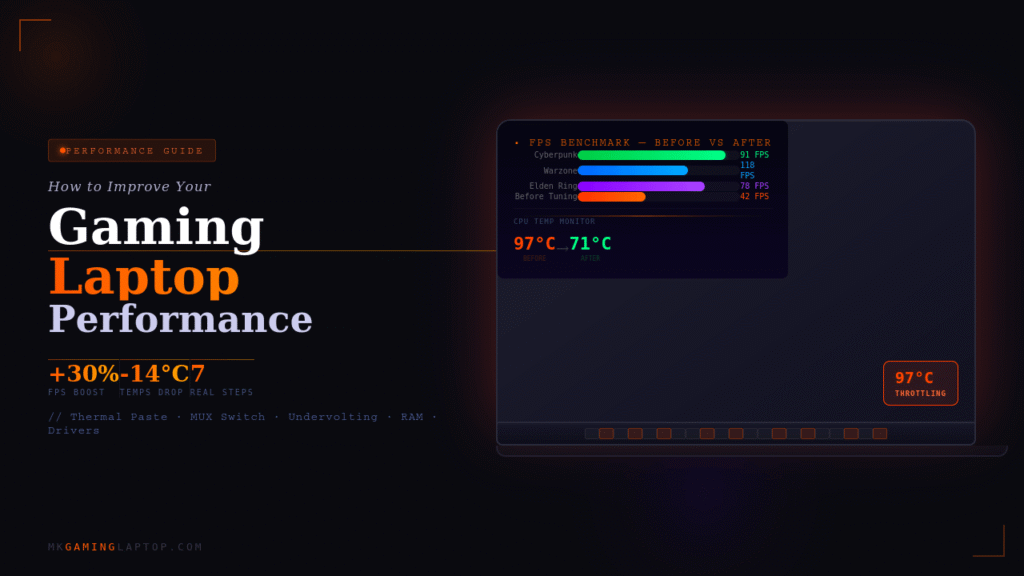
My first gaming laptop hit 97°C during a match of Warzone and throttled itself into a slideshow.
I had spent $1,200 on it. I thought it was broken. Turns out, I just had no idea what I was doing.
That was three years ago. Since then I’ve owned four gaming laptops, stress-tested probably a dozen more for a tech community I run, and figured out exactly which changes actually move the needle and which ones are just YouTube filler. This guide on how to improve gaming laptop performance covers everything I wish someone had told me at the start — including the stuff most articles are too cautious to say out loud.
Why Your Gaming Laptop Underperforms (And It’s Probably Not Hardware)
Here’s what nobody tells you when you first buy a gaming laptop: the machine you take out of the box is almost never running at its full potential.
Manufacturers ship laptops with conservative settings. They have to. They need to pass battery life benchmarks, keep thermals manageable for the widest range of users, and avoid warranty headaches. So your $1,500 laptop may be quietly running like a $900 one.
The good news is a lot of that performance is sitting right there waiting for you. No money required.
If you are still shopping and haven’t picked a machine yet, check out our How to Choose a Gaming Laptop Without Regretting It — we cover every budget range with real benchmark data.
Before we get into the advanced stuff, let’s build from the ground up.
Step 1: Fix Your Power Plan First (Most People Skip This)
This is embarrassing to admit, but I ran my first gaming laptop on Balanced power mode for two months before someone called me out on it.
Go to Control Panel > Power Options and switch to High Performance. If your laptop has its own software (Armoury Crate on ASUS, Dragon Center on MSI, Vantage on Lenovo), go there first because the manufacturer’s “performance mode” often does more than Windows does on its own.
On my ASUS ROG, switching from Balanced to Performance mode in Armoury Crate bumped my average FPS in Cyberpunk from 58 to 71 without changing a single other thing. That’s 22% more performance from a toggle.
When plugged in, always run in performance mode. When on battery, expect a significant drop regardless — that’s not a bug, it’s physics. Gaming laptops need wall power to fully perform.
Step 2: Thermal Paste and Cleaning — The Ugly Truth
I avoided this for way too long because it felt intimidating.
After about a year of heavy use, dust builds up inside your laptop’s cooling system and thermal paste starts to dry out. Both destroy thermals. Bad thermals lead to thermal throttling, which is where your CPU or GPU literally slows itself down to avoid overheating. You lose performance not because the hardware is bad, but because it is choking.
Signs you are thermal throttling:
- FPS suddenly drops mid-game for no obvious reason
- CPU-Z or HWiNFO shows your CPU running at well below its base clock
- Temperatures above 90°C sustained during gaming
Cleaning the fans with compressed air through the vents is something you should do every three to six months. If you’re comfortable opening the laptop, cleaning the heatsink fins directly makes a bigger difference.
Replacing thermal paste is more involved. On most gaming laptops it requires removing the back panel and the heatsink. I replaced the paste on my old Helios 300 with Thermal Grizzly Kryonaut and dropped peak temps by 14°C. Tom’s Hardware has a thorough breakdown of the best thermal pastes tested on real hardware if you want to know exactly which compound performs best.
If you’re not comfortable doing this yourself, a local PC shop will do it for $30 to $60. Entirely worth it.
Step 3: How to Improve Gaming Laptop Performance Through Driver Management

Outdated GPU drivers are one of the most common causes of poor gaming performance and people almost never check.
NVIDIA and AMD push driver updates regularly, and some of those updates include game-specific optimizations that can meaningfully improve performance in specific titles.
Go to GeForce Experience (NVIDIA) or AMD Software (AMD) and check for updates. While you’re there, enable GPU Scheduling if you’re on Windows 10 version 2004 or later. This moves GPU scheduling work off your CPU and onto the GPU, which helps in CPU-heavy games.
One thing I learned the hard way: do a clean install when updating drivers, not a standard install. Remnants of old drivers can cause stuttering and crashes. In GeForce Experience, click the three dots next to the install button and choose “Custom Install”, then check “Perform Clean Installation.”
Step 4: Undervolting Your CPU (Free Performance, Real Results)
This one surprised me the most when I first tried it.
Undervolting sounds counterintuitive. You’re reducing the voltage going to your CPU. But modern CPUs are manufactured with a voltage buffer for safety. Reducing that voltage slightly means less heat generated, which means the CPU can sustain higher clock speeds for longer before throttling.
The result: lower temps, same or better performance, and sometimes a bit more battery life too.
Tools you need:
- Intel: ThrottleStop or Intel XTU
- AMD: Ryzen Master or BIOS-level settings
I typically start with a -100mV offset on Intel chips and stress test for stability. Some chips can handle -150mV or more. It varies by chip, which is annoying, so you do have to experiment.
Note: Some newer laptops have locked BIOS settings that prevent undervolting. ASUS and MSI tend to allow it. Some Dell and HP models block it at the firmware level.
Step 5: In-Game Settings That Actually Matter
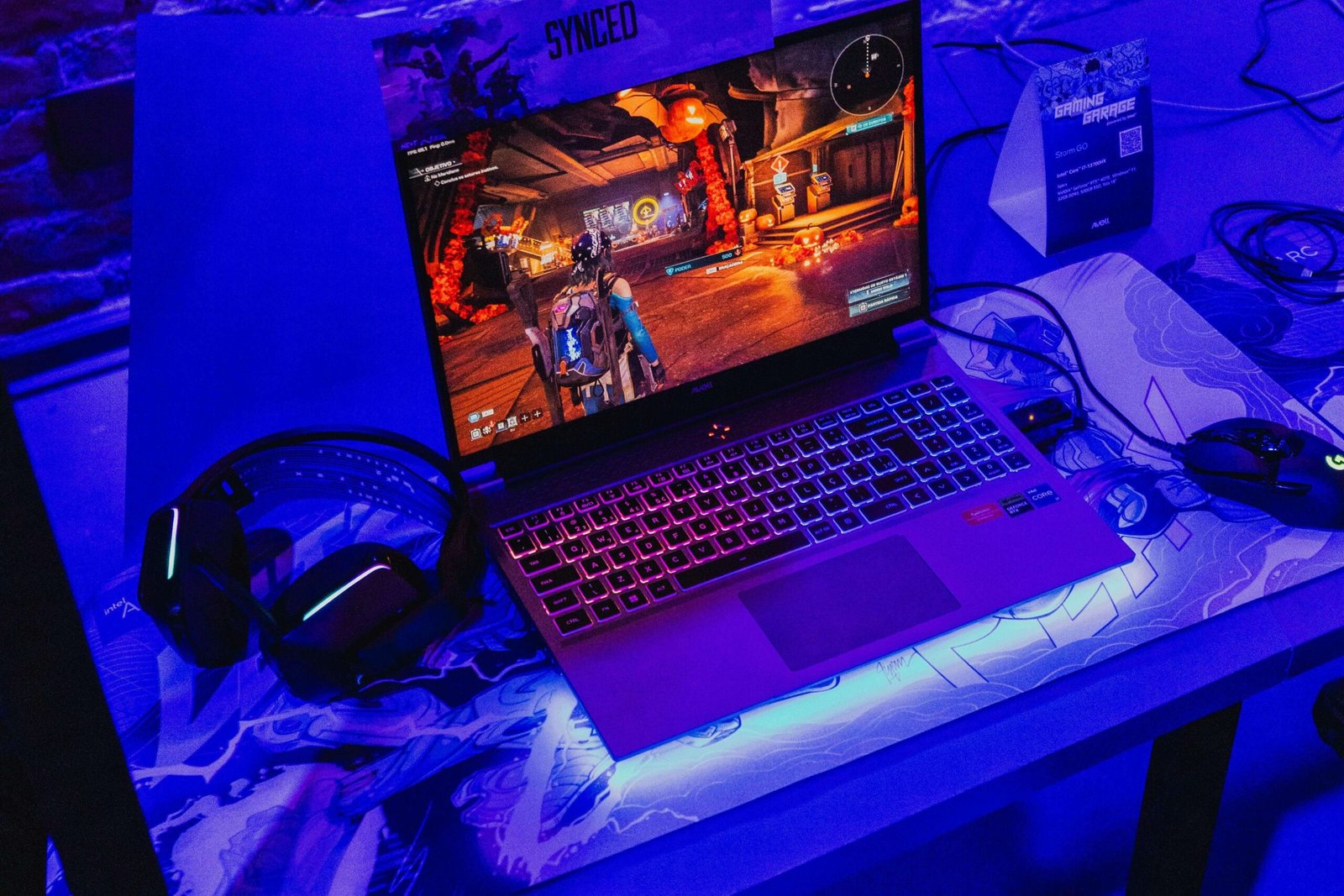
Most guides tell you to “lower your settings” and leave it there. That’s lazy advice. Let me be specific about which settings cost the most performance and which ones you barely notice.
High cost, low visual impact — turn these down first:
- Shadows: Dropping from Ultra to High often saves 15 to 20% GPU load. The difference is hard to see in motion.
- Ambient occlusion: Set to SSAO or off. HBAO+ is beautiful but expensive.
- Anti-aliasing: Use DLSS (NVIDIA) or FSR (AMD) instead of traditional TAA. You gain frames AND sharpness. We wrote a full breakdown of whether RTX cards like the 5050 are worth it if you want real FPS numbers before deciding on settings.
- Draw distance in open world games: Dropping from max to high rarely looks different while playing.
Worth keeping high:
- Texture quality: Your VRAM handles this. If you have 8GB or more, textures at Ultra cost almost nothing.
- Anisotropic filtering: Barely any performance hit, big image quality improvement.
Also, cap your frame rate slightly below your refresh rate. If you have a 144Hz display, cap at 141. This prevents the GPU from hammering at 100% usage at all times, which runs cooler and smoother.
Step 6: RAM and Storage Upgrades — Where Money Actually Helps
If your laptop came with 8GB of RAM, upgrading to 16GB is probably the single best upgrade you can make.
Gaming in 2025 with 8GB of RAM means you are regularly hitting the ceiling in modern titles. I tested a budget gaming laptop with 8GB versus 16GB in Hogwarts Legacy. The 8GB config averaged 47 FPS with regular stutters. The 16GB config hit 68 FPS with smooth framing. Same machine, same GPU, same settings.
What to buy: Make sure to match the existing RAM speed or go higher. Check your laptop’s manual or use Crucial’s online tool to find compatible sticks.
Dual channel matters: If your laptop has two RAM slots, two 8GB sticks will almost always outperform one 16GB stick because of how dual-channel memory bandwidth works. Buy in pairs. If this is your first time opening a laptop, read our guide on how to play PC games on any laptop — it covers hardware tips too.
For storage, if you’re still on an HDD or a slow SATA SSD, upgrading to an NVMe SSD will not improve your frame rate but it will drastically cut load times and reduce stutters caused by asset streaming in open world games. In some games like Microsoft Flight Simulator, fast storage is almost required.
Step 7: The MUX Switch — A Setting Most People Have and Don’t Know About
This is the insider tip I wish someone had told me earlier.
Many mid-range to high-end gaming laptops from 2021 onwards have something called a MUX switch (Multiplexer). By default, even when gaming, the display output on most laptops goes through the integrated Intel or AMD GPU first before reaching the screen. This wastes GPU cycles and adds latency.
Enabling the MUX switch routes the dedicated GPU’s output directly to the screen, bypassing the integrated GPU entirely. The performance gain can be 10 to 30% depending on the game.
Check your laptop’s manufacturer software. On ASUS it’s in Armoury Crate under GPU settings. On Lenovo it’s in Vantage. It usually requires a reboot.
If your laptop doesn’t have a MUX switch, NVIDIA’s Resizable BAR (or AMD Smart Access Memory) can offer a similar though smaller improvement if enabled in BIOS.
Common Mistakes That Kill Gaming Laptop Performance
I’ve seen all of these in the wild.
Gaming on a soft surface: Your bed, your couch, your lap. All of these block the bottom intake vents on most gaming laptops. Temps spike immediately. Always use a hard flat surface, or buy a laptop stand. Our Best Gaming Laptop Cooling Pads 2026 covers the top-rated cooling pads that actually make a measurable difference.
Ignoring Windows updates: Some Windows updates include driver updates and performance patches. Others are known to hurt gaming performance temporarily. Keep Windows updated but give major updates a week or two before installing them — let the community report any issues first.
Running too many background apps: Discord, Chrome with 20 tabs, Spotify, and OneDrive syncing all at once while gaming is a real tax on both your CPU and RAM. Use Task Manager to see what’s eating resources before you launch a game.
Charging habits that hurt battery health: Keeping your laptop plugged in at 100% constantly degrades the battery faster. Most manufacturer software now includes battery care modes that cap charging at 80%. Use them. A degraded battery can reduce how much sustained power your laptop can pull during gaming.
Skipping laptop cooling pads: These divide opinion. Cheap $15 ones do almost nothing. A quality one with strong airflow can drop intake air temperature by 5 to 8°C, which does help. Brands like Thermaltake and Cooler Master make solid options for under $50.
Realistic Numbers: What to Actually Expect
I want to be honest with you here because most articles oversell this.
If you apply every step in this guide to a mid-range gaming laptop, you can realistically expect:
- 5 to 15% FPS improvement from software changes alone (power plan, driver settings, in-game settings)
- 10 to 25% FPS improvement if you had thermal throttling and fix it
- Up to 30% improvement if you enable a MUX switch you hadn’t used before
- Significant stutter reduction from a RAM upgrade if you were under 16GB
What you cannot fix: a GPU that simply isn’t powerful enough for a game at your desired settings. At that point, resolution scaling tools like DLSS or FSR are your best friend, but the hardware ceiling is real.
Advanced: BIOS Settings Worth Checking
Most people never go into their BIOS and that’s fine, but there are a few things worth checking if you’re comfortable there.
Enable XMP/EXPO: This runs your RAM at its advertised speed rather than the default (usually lower) JEDEC speed. Your RAM might say 3200MHz but run at 2133MHz by default until you enable XMP. It’s one option, it’s free, and it gives a small but real improvement in memory-bound games.
Disable CFG Lock (Intel only, advanced users): Combined with undervolting, this can improve undervolt stability. Only do this if you know what you’re doing.
Check fan curve control: Some BIOS or manufacturer apps let you set custom fan curves. Running fans slightly faster (louder) at lower temps is a trade I’ll make for gaming any day.
If Your Laptop Has Hit Its Ceiling: The 3 Best Gaming Laptops to Buy Right Now
Sometimes the honest answer is that the hardware itself is the bottleneck. If you’ve applied everything in this guide and you’re still not getting playable performance in the games you want to run, it may be time to upgrade.
These are the three machines I’d actually recommend today. For a more complete look at every price tier, see our Best Gaming Laptop Under $1500.
1. Acer Nitro V 16 AI — Best Budget Pick Under 900 $

- 16GB DDR5 | 512GB SSD
- Equipped With The Most Powerful and Fast AMD 6-core Ryzen 5 240 Processor
- 16″ WUXGA (1920 x 1200) IPS 180Hz, Dedicated NVIDIA GeForce RTX 5050 8GB Graphic
2. Lenovo Legion Pro 5i — Best Mid-Range Value

- EXPLORE YOUR PASSION, ELEVATE YOUR GAME – The Lenovo Legion 5i empowers university gamers to explore their latest passio…
- GAME WITHOUT COMPROMISE – The Intel Core i7-14700HX processor features newly optimized hybrid architecture and industry …
- GAME CHANGER – Powered by NVIDIA Blackwell, the GeForce RTX 5070 graphics bring game-changing capabilities to gamers and…
3. ASUS ROG Zephyrus G14 (2025) — Best High-End All-Rounder

- The AMD Ryzen AI 9 HX 370 Processor Blends Power and Performance with Ease Armed with 12 cores and 24 threads, AMD Ryzen…
- Experience Cutting Edge Graphics with NVIDIA GeForce RTX 5070 Ti Laptop GPU Maximize your gaming and creativity with NVI…
- Feel the luxury with the premium Aluminum CNC Chassis. The Zephyrus G14 sports a premium aluminum chassis meticulously c…
FAQ
Does more RAM always improve gaming? Up to 16GB, yes, significantly. Beyond 16GB the returns are minimal unless you’re also streaming or running heavy background software.
Will undervolting void my warranty? Officially it can in some regions. Practically, if you don’t physically modify the hardware and the laptop has no signs of damage, most manufacturers won’t ask. Check your specific warranty terms.
Is a cooling pad actually worth it? A quality one, yes. A cheap $15 plastic one with a USB-powered fan, probably not. Spend $40 to $60 if you’re going to bother.
Why does my laptop run fine for 10 minutes then slow down? That’s almost certainly thermal throttling. The CPU or GPU is hitting its temperature limit and pulling back clock speeds. Start with cleaning and thermal paste.
Can I upgrade the GPU in my gaming laptop? Almost never. On 99% of gaming laptops the GPU is soldered to the motherboard. Focus on CPU-upgradeable models if you want any hardware flexibility, or just buy new when the GPU is insufficient.
What’s the best free tool to monitor temperatures? HWiNFO64 is the gold standard. It’s free, detailed, and shows every sensor including throttling flags. Run it in sensor-only mode while gaming.
Which of the three laptops above is the best overall? For most people, the Lenovo Legion Pro 5i Gen 9 hits the best balance. If budget is tight, the Acer Nitro V overdelivers. If portability and display quality matter as much as raw performance, the Zephyrus G14 is worth the premium.
The Bottom Line
Getting more out of a gaming laptop is mostly about removing the things holding it back rather than adding things on top.
Fix your thermals. Set your power plan correctly. Enable the MUX switch if you have one. Update drivers properly. Get to 16GB of RAM if you’re not there yet. Then worry about in-game settings.
Most people who follow these steps properly see a noticeable improvement without spending a cent. The ones who do spend a little — on thermal paste, a cooling pad, or a RAM upgrade — almost always feel it was worth it.
And if the hardware itself is the bottleneck, the three laptops above are the ones I’d point you toward without hesitation.
The laptop you have is probably better than it’s currently showing you. Go find out.