
Introduction to How to Play PC Games on Laptop the Easy Way
Gaming is no longer confined to bulky desktop computers. Modern laptops have evolved into surprisingly capable gaming devices. With the right setup and a few clever adjustments, playing PC games on a laptop can be effortless and enjoyable.
Many players assume that serious gaming requires expensive hardware. That assumption is not entirely accurate. Even a modest laptop can run numerous popular PC games smoothly when configured correctly.
Understanding a few fundamental principles can transform your laptop from a simple work machine into a competent gaming companion.
Why Gaming on Laptops Is More Popular Than Ever

The rise of portable computing has changed how people play games. Laptops offer mobility, convenience, and versatility. You can game at home, at a café, or while traveling.
Hardware improvements have also played a major role. Modern laptops often include faster processors, solid state drives, and increasingly powerful graphics chips. These advancements allow laptops to run games that were once exclusive to high end desktops.
Convenience is another factor. Many gamers prefer an all in one device that can handle work, study, and entertainment.
Understanding Laptop Hardware for Gaming
Before installing games, it helps to understand the key components that influence performance.
The processor, or CPU, manages calculations and overall system tasks. A faster CPU improves game responsiveness and multitasking.
The graphics processor, or GPU, renders the images you see on screen. This component has the largest impact on gaming performance.
RAM affects how many processes your laptop can handle simultaneously. Insufficient memory can cause lag or stuttering during gameplay.
Storage also matters. Solid state drives load games significantly faster than traditional hard drives.
Checking Your Laptop Specifications Before Playing
Before downloading any PC game, review your laptop specifications. This quick step prevents frustration later.
Open your system settings and check your CPU model, RAM capacity, graphics card, and storage space.
These details will help determine which games your laptop can handle comfortably.
Knowing your hardware capabilities allows you to choose games wisely and adjust settings appropriately.
Minimum Requirements for Casual Laptop Gaming
Not every laptop needs elite hardware to run enjoyable games.
For casual gaming, a laptop with 8 GB of RAM, a modern mid range processor, and integrated graphics can perform surprisingly well.
Many indie titles and competitive multiplayer games are designed to run on modest systems. They focus on gameplay rather than demanding graphical fidelity.
This accessibility makes laptop gaming appealing to beginners.
Recommended Specifications for Smooth Gaming
For smoother gameplay and better visuals, stronger hardware is beneficial.
A laptop equipped with 16 GB of RAM, a modern multi core processor, and a dedicated graphics card provides a far more immersive experience.
Dedicated GPUs handle complex visual effects more efficiently. This results in higher frame rates and sharper graphics.
The difference becomes especially noticeable in open world or visually rich games.
Integrated Graphics vs Dedicated Graphics Cards
Integrated graphics are built into the processor. They share system memory and consume less power.
While efficient, integrated GPUs have limited graphical power. They are best suited for lighter games.
Dedicated graphics cards, however, possess their own memory and specialized processing cores. This architecture allows them to render complex scenes much faster.
Gamers seeking high frame rates and detailed graphics benefit greatly from dedicated GPUs.
Choosing the Right PC Games for Your Laptop
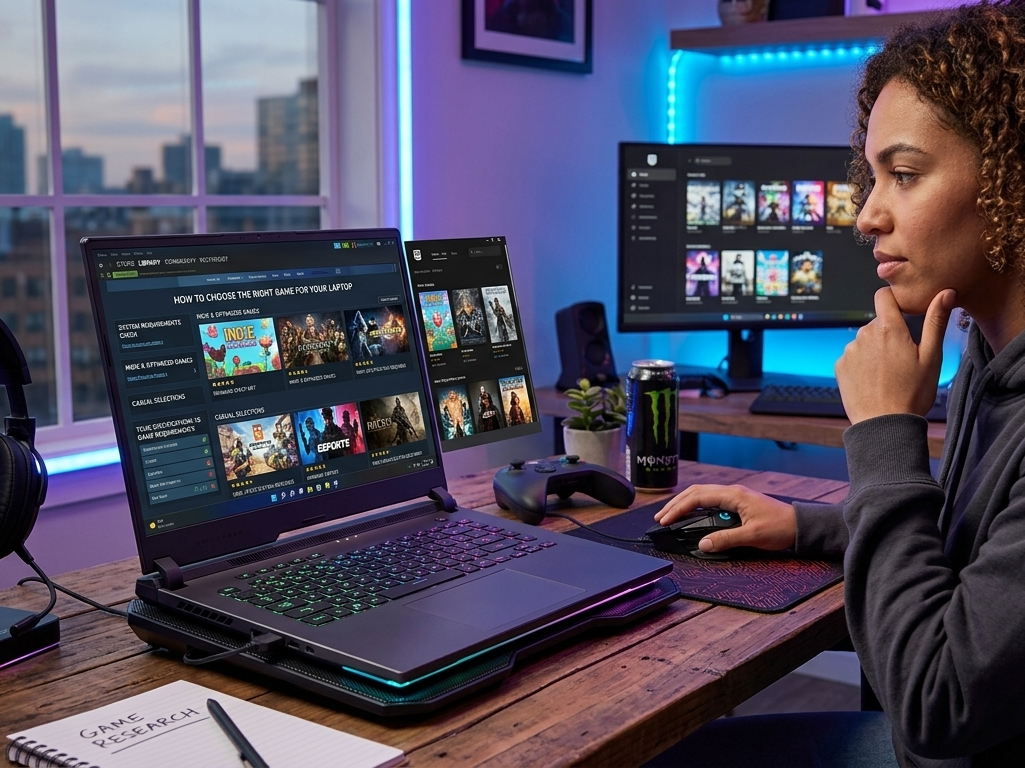
Selecting appropriate games is essential. Some titles require extremely powerful hardware, while others are optimized for low to mid range systems.
Strategy games, indie adventures, and esports titles often run smoothly on laptops. These games emphasize gameplay mechanics rather than photorealistic graphics.
Careful selection ensures a better experience without unnecessary performance issues.
How to Check Game System Requirements
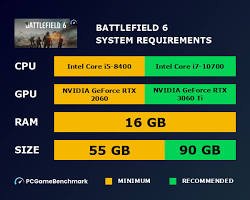
Every PC game lists minimum and recommended system requirements.
Before downloading a game, compare these requirements with your laptop’s specifications. If your hardware matches or exceeds the minimum requirements, the game should run.
Matching the recommended requirements usually ensures smoother performance and improved visuals.
This simple comparison saves time, storage, and frustration.
Best Platforms to Download PC Games
Several digital platforms allow players to download and manage games easily.
These platforms act as centralized libraries where games can be purchased, installed, updated, and launched.
They also provide community features, updates, and cloud saves.
Using Steam to Install PC Games
Steam is one of the most popular PC gaming platforms in the world.
It hosts thousands of games across multiple genres. Installing a game is simple: create an account, download the Steam client, browse the store, and click install.
Steam also offers seasonal discounts and frequent sales, making it easy to build a large game library without overspending.
Finding Free Games on Epic Games Store
Epic Games Store is another popular platform.
It frequently offers free games every week. Many players build impressive collections without spending any money.
The platform is also home to several high profile titles and exclusive releases.
Exploring Games on Microsoft Store
The Microsoft Store provides easy access to numerous PC games that integrate seamlessly with Windows systems.
Games installed through this platform often feature straightforward updates and system integration.
For beginners, the installation process is particularly simple.
Step by Step Guide to Installing PC Games on a Laptop
Installing PC games typically involves just a few steps.
First, download a gaming platform such as Steam or Epic Games Store. Create an account and sign in.
Next, search for the game you want. Click install and choose the storage location.
Once the download completes, the game will appear in your library and can be launched instantly.
Optimizing Laptop Settings for Better Gaming
System optimization can significantly improve performance.
Close unnecessary background applications. Disable resource heavy startup programs.
Updating drivers and operating system components also enhances compatibility and stability.
Small adjustments often produce noticeable improvements.
Adjusting Graphics Settings for Smooth Performance
Graphics settings determine how detailed the game appears.
Lowering resolution, reducing shadow quality, and disabling intensive visual effects can dramatically increase frame rates.
This balance between performance and visuals ensures a smoother gaming experience.
Reducing Lag and Increasing FPS
Lag and low frame rates can disrupt gameplay.
Closing browser tabs, disabling background updates, and maintaining adequate storage space help maintain system efficiency.
Updating graphics drivers can also boost performance, as manufacturers often release optimizations for newer games.
Keeping Your Laptop Cool While Gaming
Heat is the silent adversary of laptop performance.
During gaming sessions, hardware components generate significant heat. Excessive temperatures may trigger performance throttling.
Ensure proper ventilation and consider using a cooling pad. Keeping airflow unobstructed allows your laptop to maintain stable performance.
Using Game Mode in Microsoft Windows
Microsoft Windows includes a built in feature called Game Mode.
This feature prioritizes gaming processes and allocates system resources more efficiently.
Activating Game Mode can improve frame stability and reduce background interruptions.
Playing PC Games with a Controller
Many players prefer controllers for certain genres such as racing, sports, and action games.
Most modern laptops support wireless and wired controllers easily.
Connecting a controller can enhance comfort and provide a more console like experience.
Using an Xbox Wireless Controller for Laptop Gaming
The Xbox Wireless Controller is widely compatible with PC games.
It connects via Bluetooth or USB cable. Many PC titles automatically recognize the controller, requiring little to no configuration.
This plug and play convenience makes it a favorite among laptop gamers.
Cloud Gaming as an Alternative for Low End Laptops
Cloud gaming allows players to stream games from remote servers rather than running them locally.
This means even weaker laptops can play graphically demanding titles.
Only a stable internet connection is required.
Playing High End Games with NVIDIA GeForce Now
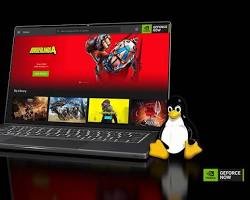
NVIDIA GeForce Now enables players to stream high end PC games to almost any device.
The heavy processing occurs on remote servers, while your laptop simply displays the video stream.
This technology opens the door to advanced gaming even on modest hardware.
Best Accessories for Laptop Gaming
A few accessories can significantly improve the gaming experience.
Gaming mice provide precise control. External keyboards offer better ergonomics. Cooling pads help regulate temperatures during intense gaming sessions.
These additions transform a simple laptop setup into a comfortable gaming station.
Common Problems When Playing PC Games on a Laptop
Laptop gamers may encounter issues such as low frame rates, overheating, or storage limitations.
Fortunately, most of these problems can be resolved through simple troubleshooting steps.
Updating drivers, freeing storage space, and optimizing system settings often solve performance issues.
Simple Tips to Turn Your Laptop Into a Gaming Machine
Upgrading RAM can improve multitasking performance dramatically.
Switching to an SSD reduces loading times and enhances responsiveness.
Regular maintenance, including driver updates and system cleanup, keeps your laptop running efficiently.
Small upgrades can yield surprisingly large improvements.
Final Thoughts on How to Play PC Games on Laptop the Easy Way
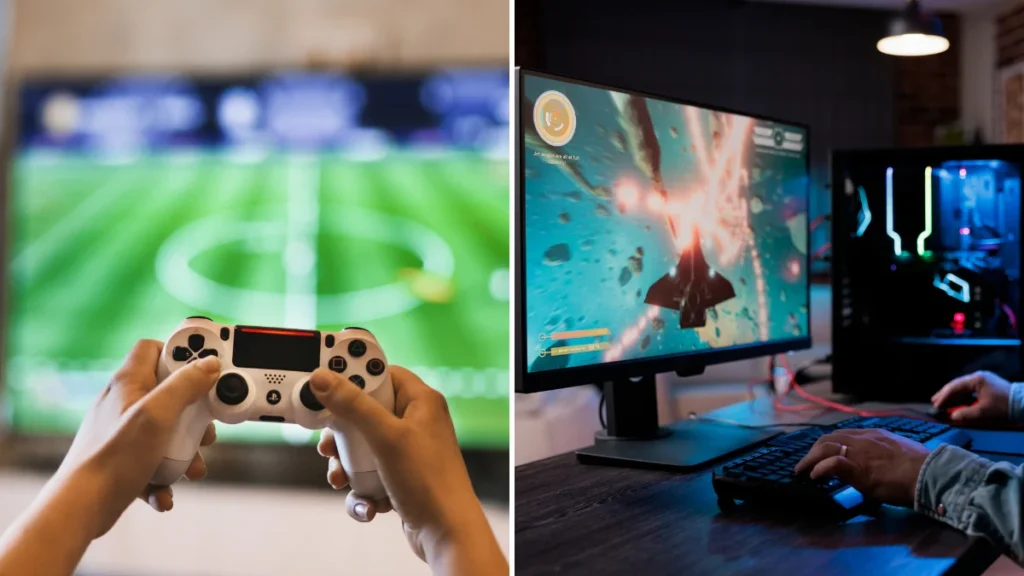
Laptop gaming has become more accessible than ever. With the right approach, even modest hardware can deliver enjoyable experiences.
Understanding your laptop’s capabilities, selecting appropriate games, and optimizing system settings are the keys to success
If you’re also looking for the best laptops to run these games smoothly, check out our Gaming Laptop Amazon Guide: Find the Perfect One Fast for top picks and deals.
If you want to play PC games on your laptop the easy way and enjoy smooth, high-quality performance, the MSI Vector A18 HX 18” Gaming Laptop is a top choice. With a Ryzen 9 processor, RTX 5080 GPU, 32GB DDR5 RAM, and a stunning 240Hz QHD+ display, it handles every game effortlessly. This laptop is perfect for serious gamers who want speed, visuals, and reliability all in one device.
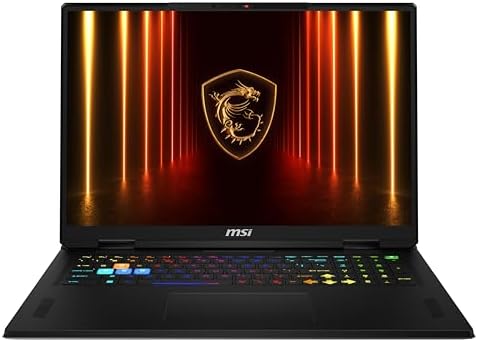
- AMD Ryzen 9-9955HX
- Simplistic Design: Enjoy the latest generation of Windows 11 Home for your everyday needs. *MSI recommends Windows 11 Pr…
- NVIDIA GeForce RTX 5080 Laptop GPU