
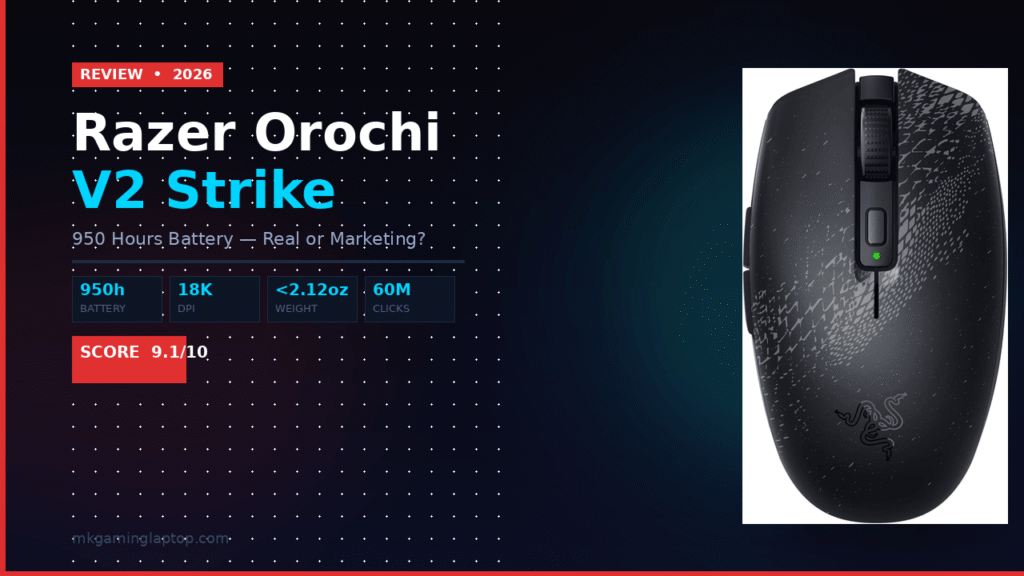
Razer Orochi V2 Strike Review: 950 Hours Battery Real?

Quick Verdict
Battery (Bluetooth)
Up to 950 hours
9.1
Overall Score / 10
Battery (HyperSpeed)
Up to 425 hours
Weight
< 2.12 oz (without battery)
Sensor
Razer 5G Advanced 18K DPI
Switch Rating
60 million clicks
Price Range
$69 – $79 USD
Table of Contents
I did not believe the 950-hour battery claim when I first saw it.
Honestly, I laughed a little. Every mouse company says something wild on the box and then you are charging the thing every two days. But after using the Razer Orochi V2 Strike for months, I can tell you the number is not a lie — and the battery life is not even the most interesting thing about this mouse.
This article covers everything I wish someone had told me before I bought it. The good, the trade-offs, a few things I got wrong at first, and who this mouse is actually built for.
What the Razer Orochi V2 Strike Actually Is (And Why It Matters)
The Orochi V2 Strike is a compact wireless gaming mouse from Razer (official product page). It runs on AA batteries — yes, actual AA batteries — and it gives you two completely different wireless modes depending on what you are doing.
The Strike edition specifically adds a few visual tweaks but the core hardware is the same unit that has quietly become one of the best travel and hybrid-use gaming mice on the market.
The headline spec is the 950 hours of battery life in Bluetooth mode, and up to 425 hours when you switch to Razer HyperSpeed Wireless for low-latency gaming.
Key Takeaway
Those numbers are not marketing tricks. They are based on using AA batteries at normal usage patterns. I will get into what that actually looks like in real life below.
Why I Picked This Over a Rechargeable Mouse
I have owned rechargeable mice. They are fine until the day you sit down to game and the battery is at 3% because you forgot to plug it in the night before.
With the Orochi V2 Strike, that problem goes away completely. You keep a spare set of AA batteries in your bag and you are covered for months. I travel with a laptop regularly and this workflow just fits better.
The mouse itself weighs under 2.12 oz without the battery. That is extremely light. Some mice feel like gym equipment in comparison. After long sessions my wrist noticed the difference.
For anyone who games seriously on a laptop, travels for work, or just wants a mouse that does not need a charging cable living on their desk, this setup makes a lot of practical sense.
Breaking Down the 950-Hour Battery Life: What It Really Means
Bluetooth Mode vs HyperSpeed Wireless
Here is the part that most reviews gloss over.
The 950 hours applies to Bluetooth mode. Bluetooth mode is great for productivity, casual browsing, remote desktop work, and spreadsheets. It is stable, it has good range, and it will last you an absurd amount of time on a single pair of batteries.
When you switch to Razer HyperSpeed Wireless, you get a significantly faster, lower-latency connection. This is the mode you use for actual gaming. The trade-off is battery life drops to around 425 hours — which is still more than most rechargeable mice will ever see in total.
I run Bluetooth during work hours and flip over to HyperSpeed when I start gaming. This rhythm made the most sense to me after about two weeks of experimenting.
What Drains the Battery Faster
A few things I noticed in real use:
- RGB lighting will eat into battery life noticeably if your version has it
- High DPI settings in HyperSpeed mode seem to draw slightly more power
- Leaving the dongle plugged in while using Bluetooth mode is not ideal — pick one and commit
With normal use, most people will go two to four months before needing new batteries. That lines up with what the spec sheet implies.
The 18K DPI Sensor: Why This Is Not Just a Marketing Number
The Razer 5G Advanced Optical Sensor at 18,000 DPI is genuinely impressive in a mouse this small.
What impressed me was the tracking accuracy at low DPI settings — which is actually where I spend most of my time (around 800 to 1600 DPI for gaming). The sensor has zero spinout issues even when I swipe quickly across a large mousepad. That used to happen with older sensors on budget mice and it would cost me games.
For competitive gaming, spinouts are the enemy. When your cursor suddenly flies off in a random direction mid-aim, it is almost always a cheap sensor losing track of the surface. The 5G sensor does not do that. Razer has been refining this thing for years and it shows.
The sensor also handles different surface types well. Cloth pad, hard pad, glass — all worked without needing to recalibrate each time.
The Mechanical Switches: 60 Million Clicks and Gold-Plated Contacts
Why the Switch Quality Matters More Than People Realize
Most gaming mice use switches rated for 20 to 50 million clicks. The Orochi V2 Strike uses Razer 2nd Gen Mechanical Mouse Switches rated for 60 million clicks.
The gold-plated contact points are not just a fancy marketing detail. Gold resists oxidation, which means the contacts stay clean and consistent over time. Cheaper switches develop a subtle mushiness as the contacts degrade — you might not notice it at first but once you switch back to a fresh mouse you feel the difference immediately.
I have had mice where the left click started feeling slightly inconsistent after a year of heavy use. That is the contacts degrading. It has not happened with this mouse.
The click feel itself is crisp. There is a clean, satisfying tactile response without being too loud for a quiet office environment.
Common Mistakes People Make With This Mouse
1
Only Using One Wireless Mode
A lot of people plug in the HyperSpeed dongle and never touch Bluetooth. They burn through battery twice as fast. Set up both modes — Bluetooth for work, HyperSpeed for gaming. It takes two seconds to toggle.
2
Using Old or Low-Quality AA Batteries
I initially used old batteries from a drawer and the mouse felt sluggish in HyperSpeed mode. Fresh Duracell or Energizer batteries made a real difference. The mouse draws power at a specific rate and weak batteries cannot always keep up.
3
Not Adjusting DPI for the Task
The 18K DPI ceiling is there for players who want it, but most people are best served at much lower settings. For FPS games I use 800 DPI. For productivity tasks I go around 1200. Set your DPI stages in Razer Synapse before you need them.
4
Dismissing It Because It Looks Small
A lot of larger-handed gamers look at it and assume it will not work. My hands are medium-large and I use claw grip with zero issues. Do not write it off without trying it — most people adapt quickly.
Who This Mouse Is Built For
Let me be direct here.
The Orochi V2 Strike is not the best choice if you never leave your desk and want the absolute peak performance mouse for ranked play. There are heavier, wired competitors that edge it out in pure competitive metrics.
But if any of these describe you, this mouse is almost certainly a better fit than what you are currently using:
- You game on a laptop and also use the mouse for work
- You travel and want one mouse that handles everything
- You are tired of charging cables and dead batteries mid-session
- You want a light, fast, well-built mouse without overspending
- You play a variety of game types, not just hardcore competitive shooters
Real Numbers: Cost and What You Are Actually Getting
The Orochi V2 Strike typically retails between $69 and $79 USD depending on the region and where you buy it.
At that price point you are getting a premium 18K DPI optical sensor, dual wireless modes, 60 million click mechanical switches, sub-2.12 oz weight, and a compact travel-friendly design.
Razer’s own flagship wireless mice often exceed $150. The Orochi V2 Strike gives you roughly 80% of that performance and 100% of the flexibility at half the price.
The ongoing cost of AA batteries is real but minimal. A four-pack of quality AAs costs about $2 to $4. At the usage rates this mouse delivers, you are spending maybe $10 to $15 per year on batteries at most.
Insider Tips Most Reviews Do Not Cover
Pair It to Your Phone Too
The Orochi V2 supports multiple Bluetooth devices. I have it paired to my laptop and phone. Switching is quick and useful for tablet work.
Turn Off RGB Lighting
If your version has lighting, disable it. It drains the battery faster and adds no gaming benefit. You gain weeks of extra battery life instantly.
Set DPI Stages Before Travelling
Set your preferred DPI stages in Razer Synapse at home first. Settings stay in onboard memory. You will not need a computer to switch them later.
Switch Off When Packing
Flick the physical power switch off before putting the mouse in a bag. Even in sleep mode it slowly drains. This one habit adds weeks of battery life.
The Dongle Stores Inside the Battery Bay
Razer built a small slot inside the battery compartment to store the HyperSpeed USB dongle when not in use. Most people miss this on first setup. No more losing the dongle at the bottom of a laptop bag.
How It Compares to Similar Mice
The data below is based on hands-on use and spec comparisons. For full independent lab testing scores across all mice, RTINGS.com gaming mouse rankings are the most thorough resource available.
| Feature | Razer Orochi V2 Strike | Logitech G305 | SteelSeries Aerox 3 Wireless |
|---|---|---|---|
| Battery Life | 950h BT / 425h HS | 250h | 200h |
| Weight | < 2.12 oz | 2.9 oz | 2.36 oz |
| Sensor DPI | 18,000 | 12,000 | 18,000 |
| Wireless Modes | BT + HyperSpeed | LIGHTSPEED only | BT + 2.4GHz |
| Switch Rating | 60M clicks | 10M clicks | 60M clicks |
| Price (approx.) | $69 – $79 | $39 – $49 | $69 – $79 |
The G305 is cheaper but falls behind on battery life, weight, and switch durability. If budget is the main driver, check our full best wireless gaming mouse under $100 guide for more options at every price point. The Aerox 3 Wireless is a more direct competitor — similar price, similar specs — but the Orochi V2 Strike wins clearly on battery life and the HyperSpeed connection is noticeably more responsive than generic 2.4GHz implementations.
Frequently Asked Questions
Does the Orochi V2 Strike work on Mac?
Yes. Bluetooth mode pairs normally with macOS. HyperSpeed mode also works but some advanced features require Razer Synapse, which has a Mac version available.
Can I use rechargeable AA batteries?
Yes and it works fine. Performance is slightly lower than alkaline in demanding scenarios but the difference is minimal for most users. If you want maximum performance, stick to fresh alkaline batteries for competitive sessions.
Is 950 hours the real number or a lab test?
It is a tested figure under specific conditions but real-world results come close. Most users report two to four months per set of batteries in Bluetooth mode with regular daily use. In HyperSpeed mode with moderate gaming, expect six to eight weeks.
Is this mouse good for FPS games specifically?
Yes. The 5G sensor handles fast movements cleanly with no spinouts. It is not the absolute top-tier option for professional competitive play but for 99% of gamers it performs excellently in FPS titles.
Does it have side buttons?
Yes. The Orochi V2 Strike has two side buttons on the left side. They are well-positioned and easy to reach without accidental presses during normal grip.
What size mouse pad works best with it?
Any surface works well. I prefer a medium cloth pad for gaming and a hard pad when traveling. The 5G sensor adapts without any recalibration needed.
Final Verdict
The Razer Orochi V2 Strike delivers on its headline promise. 950 hours of wireless power in Bluetooth mode is real and practical. The dual wireless system solves the problem of choosing between battery life and performance. The sensor is excellent, the switches are built to last, and the weight is one of the lowest you will find at this price point.
If you game on a laptop, travel regularly, or simply want a mouse that you are not constantly thinking about charging, this is one of the smartest purchases you can make in the $70 to $80 range. For deeper lab-level testing data on sensor performance and switch longevity, Tom’s Hardware mouse reviews cover the full technical breakdown.
Pros
- 950h battery life in Bluetooth mode
- Dual wireless (BT + HyperSpeed)
- Under 2.12 oz — genuinely lightweight
- 18K DPI sensor with zero spinouts
- 60M click switches with gold contacts
- Dongle stored inside battery bay
- Excellent value at $69–$79
Cons
- Small form factor (not ideal for large hands + palm grip)
- RGB drains battery faster
- Not the peak competitive option for pro play
- Ongoing battery cost (minimal but present)